
Article verified for Release 15.1 on November 21, 2025.
This article explains how to create a new question within an existing question pool. By adding questions directly to a pool, you can expand your test content, improve question variety, and ensure that your assessments remain up-to-date and aligned with your testing strategy. The following steps guide you through the complete process, from selecting a pool to configuring question content, scoring, and optional assistance settings.
Create a new question in the question pool
To add a question to a question pool, follow these steps:
-
From the left-side menu, select the Tests tab.
-
Click the Question pools tab.
A list of all available question pools will appear. -
Select the question pool where you want to add a new question.
-
Navigate to the Questions tab within the selected pool.
-
Click the Add question button.
-
Choose one of the available question types from the list.
For example, you can select a Single-choice question.

Define the question content
When creating a question, you can configure the following fields and options:
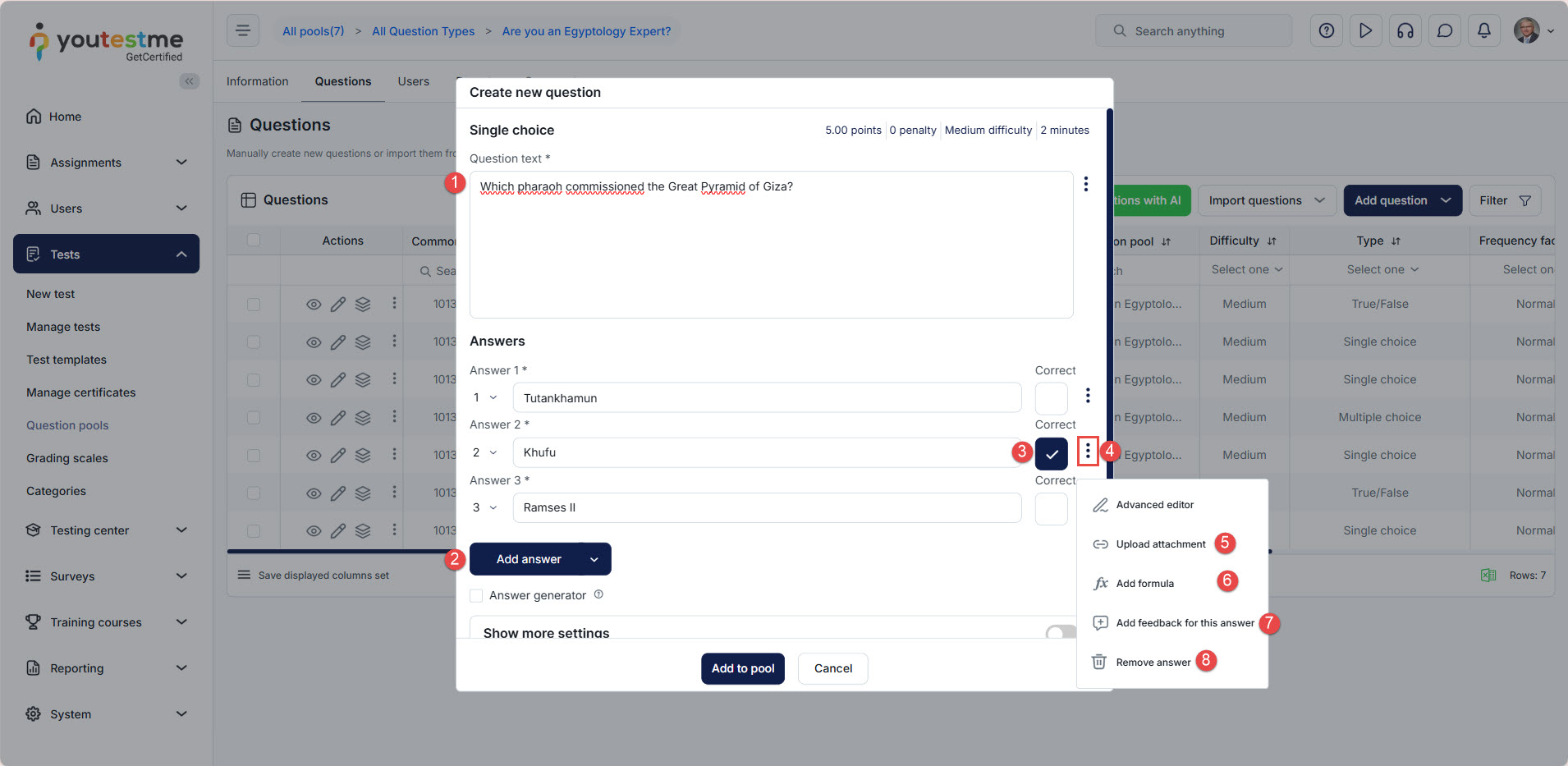
- Enter the Question text.
- Add potential answers: Click Add answer to create options for the question.
- Set the correct answer: Define which answers are correct and which are incorrect, and verify the correct answer.
- Open the advanced editor. For more information on how to use the advanced editor, please check this article.
- Upload attachments such as images, documents, or other files. For more information, please check this article.
- Add feedback for each answer option. For more information, please check this article.
- Add feedback for this answer.
- Remove an answer if necessary.
Configure scoring and settings
Next, define the question’s scoring and additional parameters:
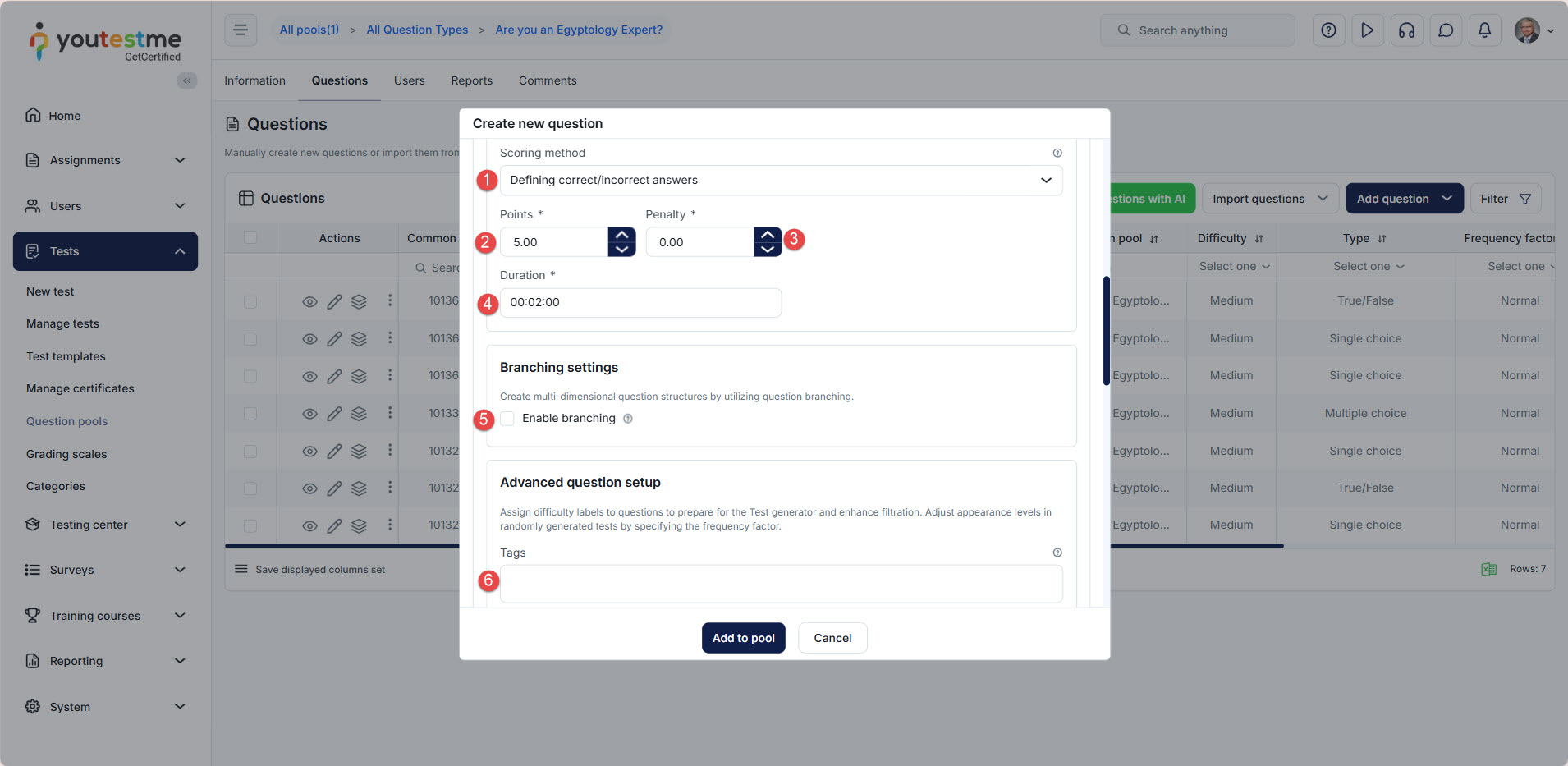
- Select the scoring method. For a more detailed explanation, please check this article.
- Set Points.
- Set Penalty.
- Set duration.
- Enable Branching (additional setting). For more information, please check this article.
- Add tags (additional setting).

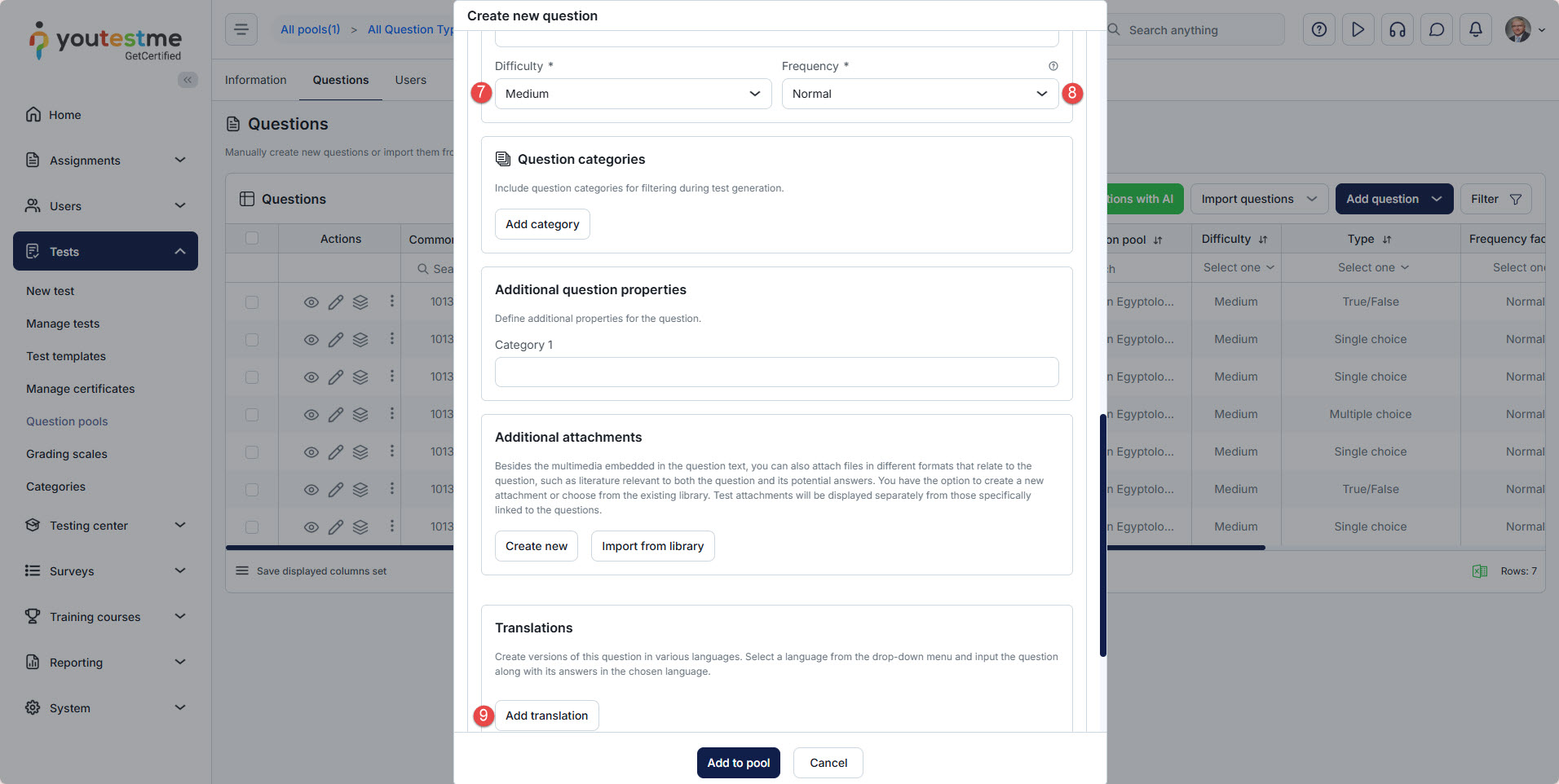
- Choose difficulty.
- Choose frequency.
- Add Translation (additional setting). For more information, please check this article.
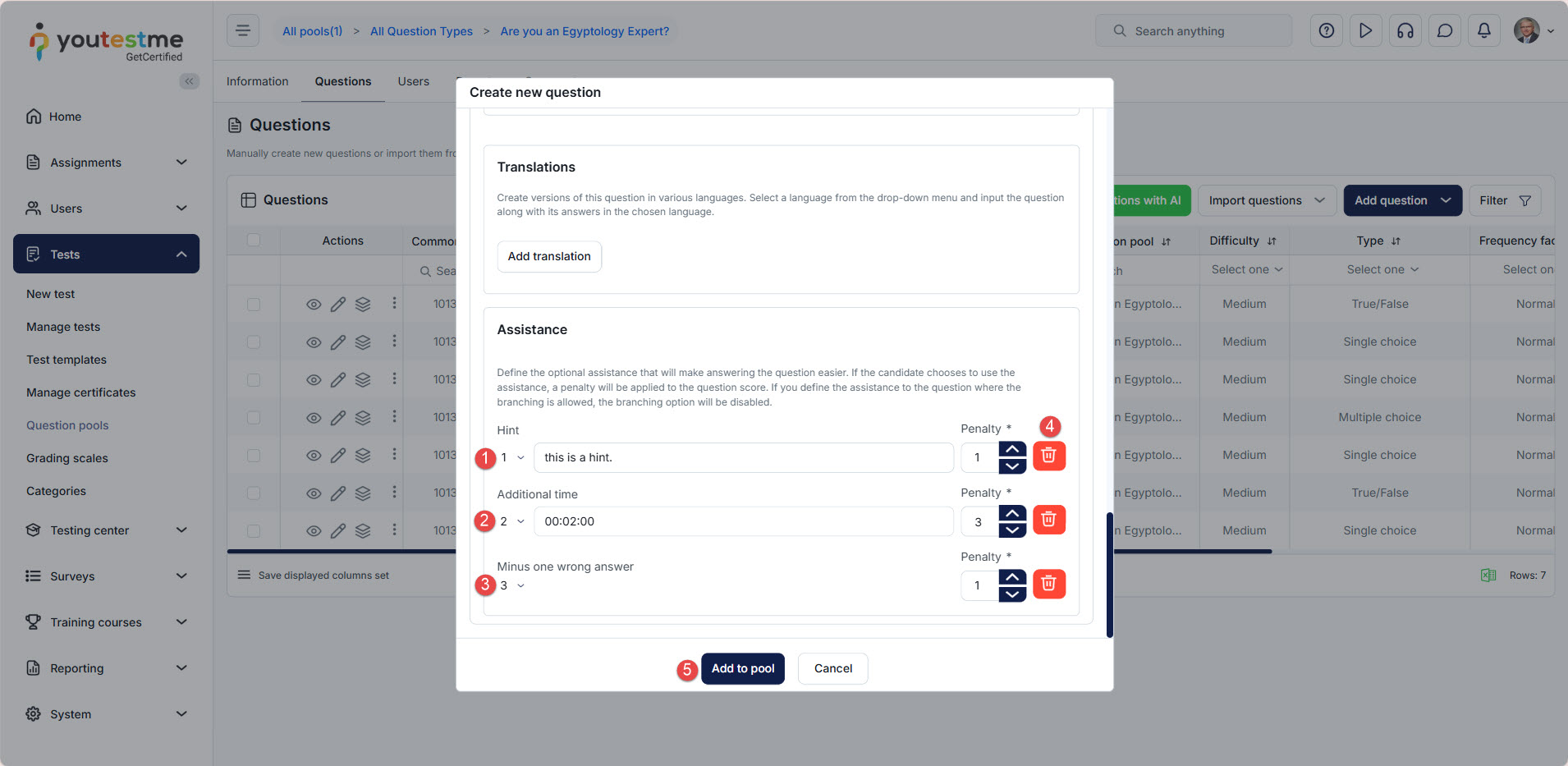
Add assistance (optional)
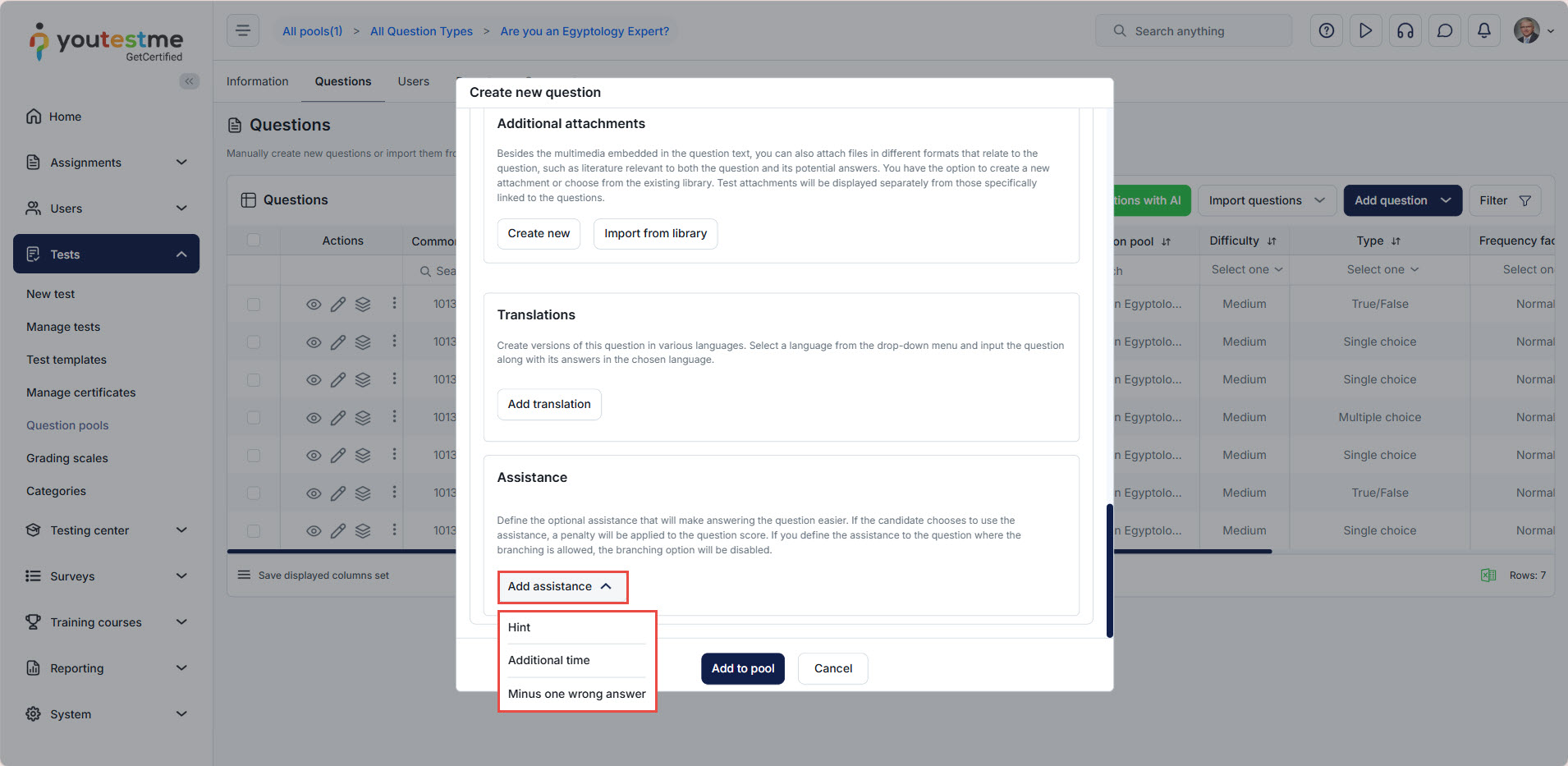
Depending on the question type, you may add assistance options:
-
Hint: Add the hint text and set a penalty.
-
Additional time: Set the extra duration and the penalty.
-
Minus one wrong answer: Set the penalty.
- If you add a Hint, you must add hint text and set a penalty.
- If you add Additional time, set the duration and penalty.
- If you add a Minus one wrong answer, set a penalty.
- Delete assistance.
- Add the question to the pool.
For a detailed explanation, check out this video.




