Article verified for Release 15.2 on December 5, 2025.
This article outlines the process of reactivating the accounts of existing users and sending them new passwords. For users who conduct tests intermittently, changing their status from active to inactive during non-testing periods proves beneficial. Inactive users are temporarily excluded from processing until their accounts are reactivated.
Activate Existing User Profiles
To activate the existing user profiles, follow these steps:
- From the main menu, select “Users”, then open the “User Profiles” tab.
- Select the “List of All Users” tab.
- Click the Filter button and check the box next to “Show inactive users.”
- Click Apply to display inactive users.
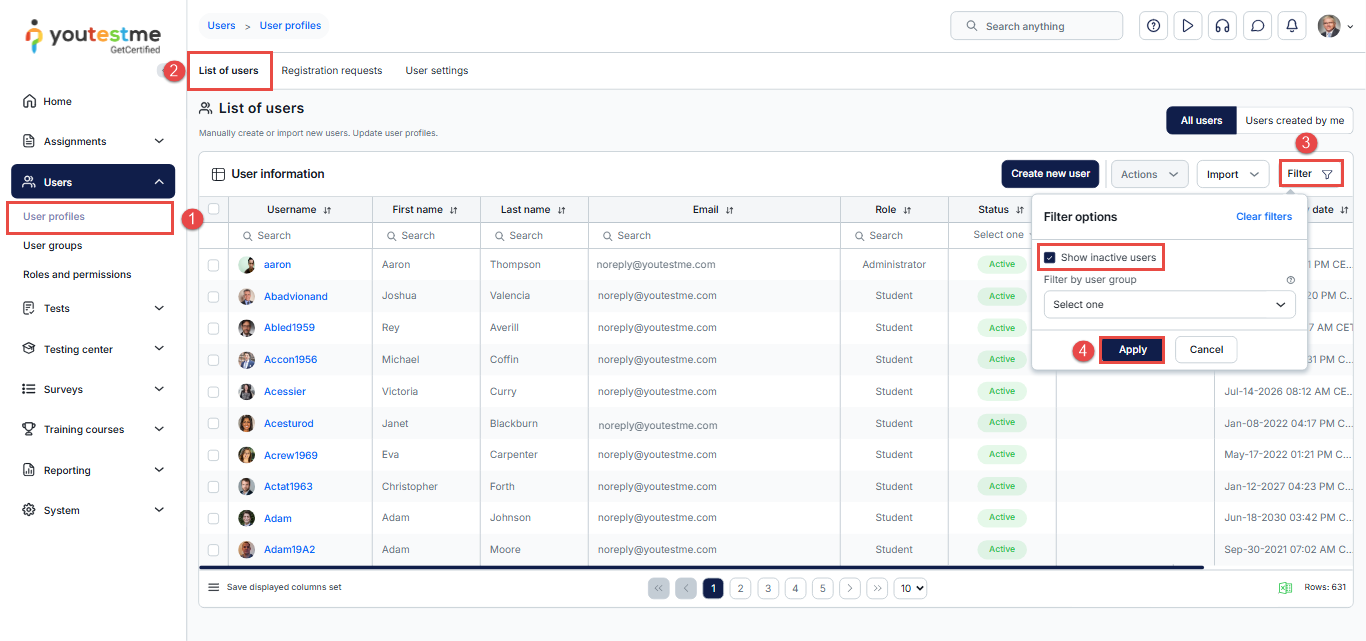
Note: Inactive user accounts are hidden by default. To view them, you must open the Filter and enable “Show inactive users.” Otherwise, inactive accounts will not appear in the list.
- Select the user profiles you want to reactivate.
- Click the Action option.
- Select “Set status to” and choose “Activate.”
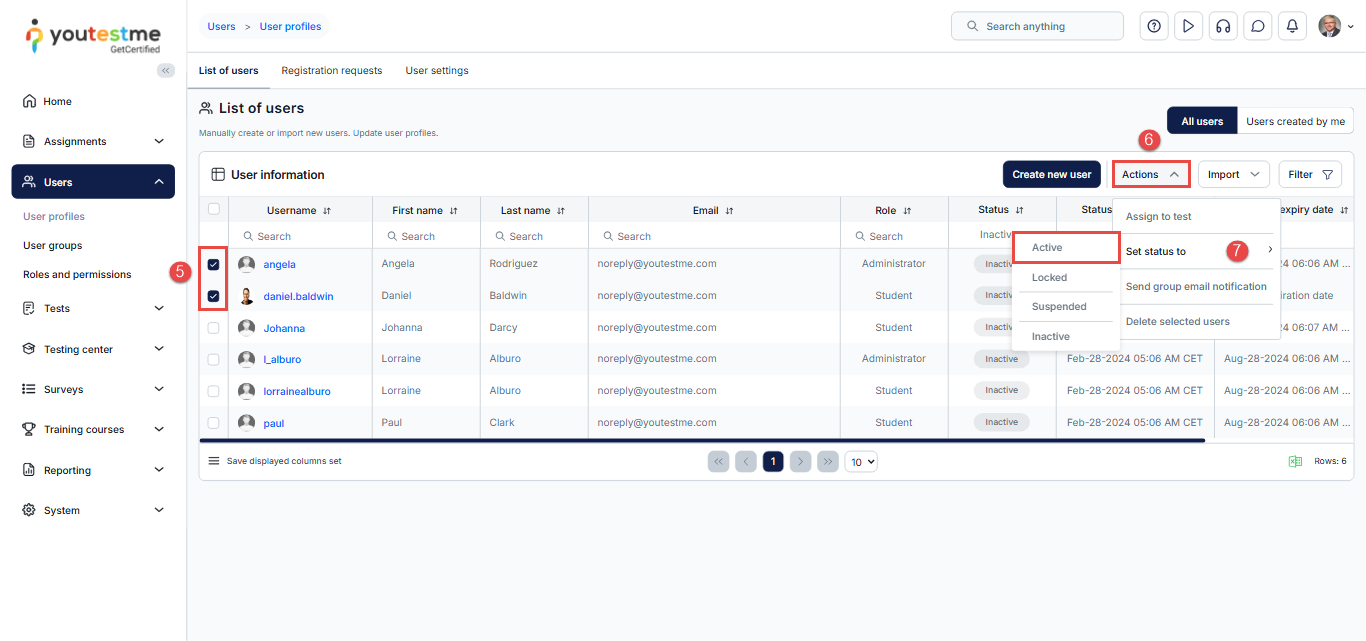
Activate a Specific User Profile
To activate a single user profile, you can:
- Open the user’s profile from the “List of All Users.”
- Click the Activate button.
- In the confirmation pop-up, click Yes to confirm the activation.
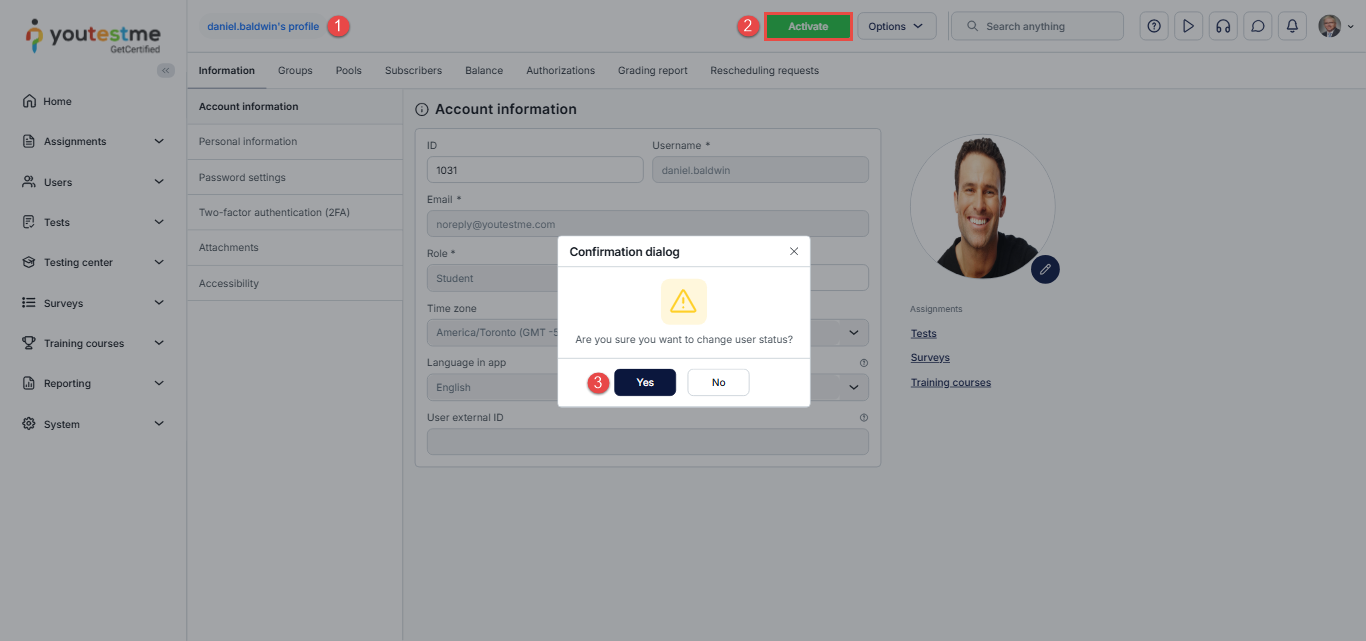
Candidate’s Perspective
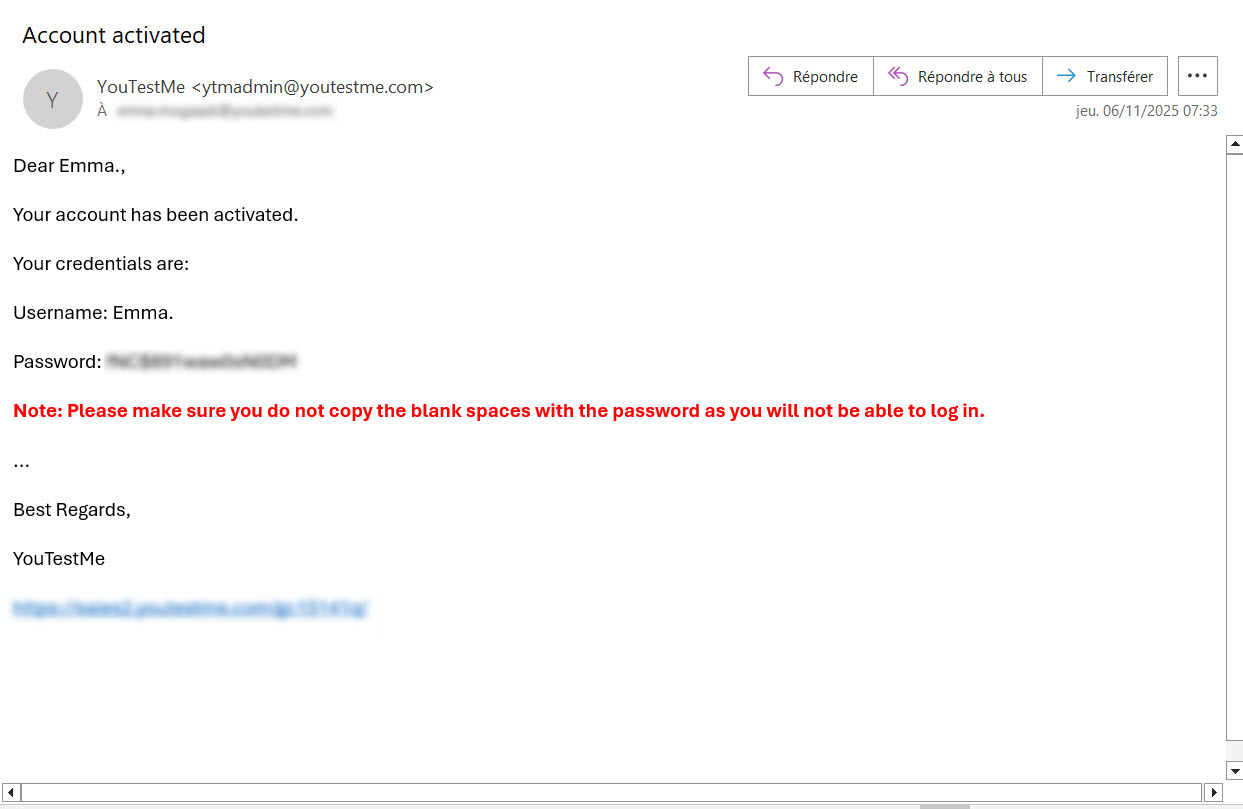
Once you activate user profiles, users will receive an email with their username and new password.
For a video tutorial on h
For more related instructional materials, please visit:






